Upload Process
Only Project Administrators can upload new Systematic Searches. The upload process follows a wizard to guide you through importing your reference file. This is a three-step process for .csv files (Basic, Screening, and Upload) and a two-step process for .xml and .ris files (Basic and Upload, as the screening step is skipped).
Contents
Getting Started
- Navigate to the desired project within SyRF.
- In the left-hand project navigation panel, expand the Studies section.
- Click on Systematic Searches.
- Click the + Upload New Systematic Search button to launch the wizard.
Wizard Step 1: Basic Information
In the first step, you will provide essential details about your search and select your file
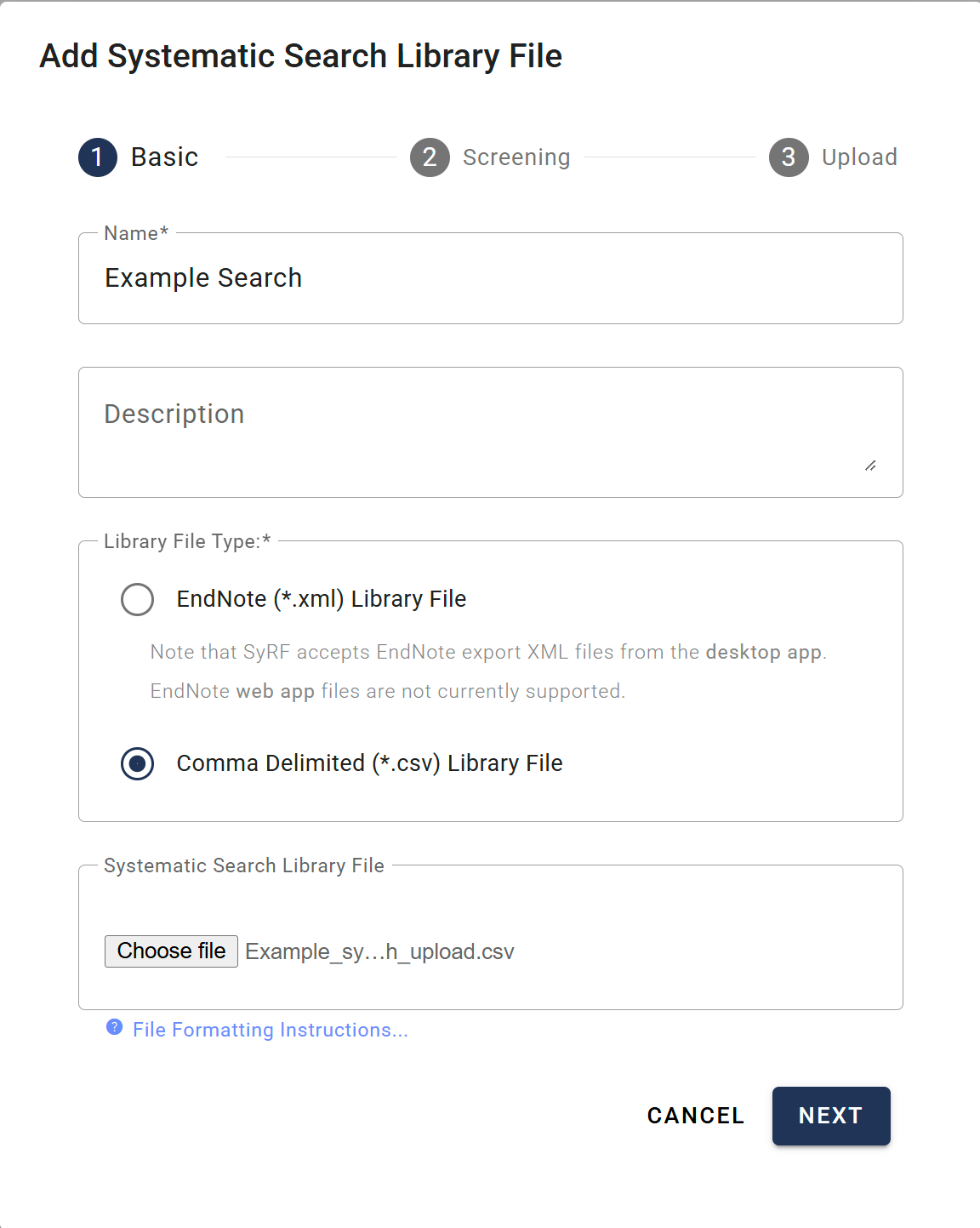
- Name: Enter a descriptive name for your Systematic Search (e.g., “Embase Search May 2024”). This field is required.
- Description: (Optional) Add any relevant details about the search strategy or its contents.
- Library File Type: Select EndNote (
.xml), Comma Delimited (.csv), or Research Information Systems (.ris) to match the file you prepared. SyRF does not auto-detect the format. - Systematic Search Library File: Click Choose File and select the prepared
.xml,.csv, or.risfile from your computer. - Click NEXT to proceed.
Wizard Step 2: Screening (CSV Uploads Only)
This step allows you to map pre-existing screening decisions from your CSV file to project members and screening stages in SyRF.
Note: This step is skipped if you are uploading an EndNote .xml or RIS .ris file.
-
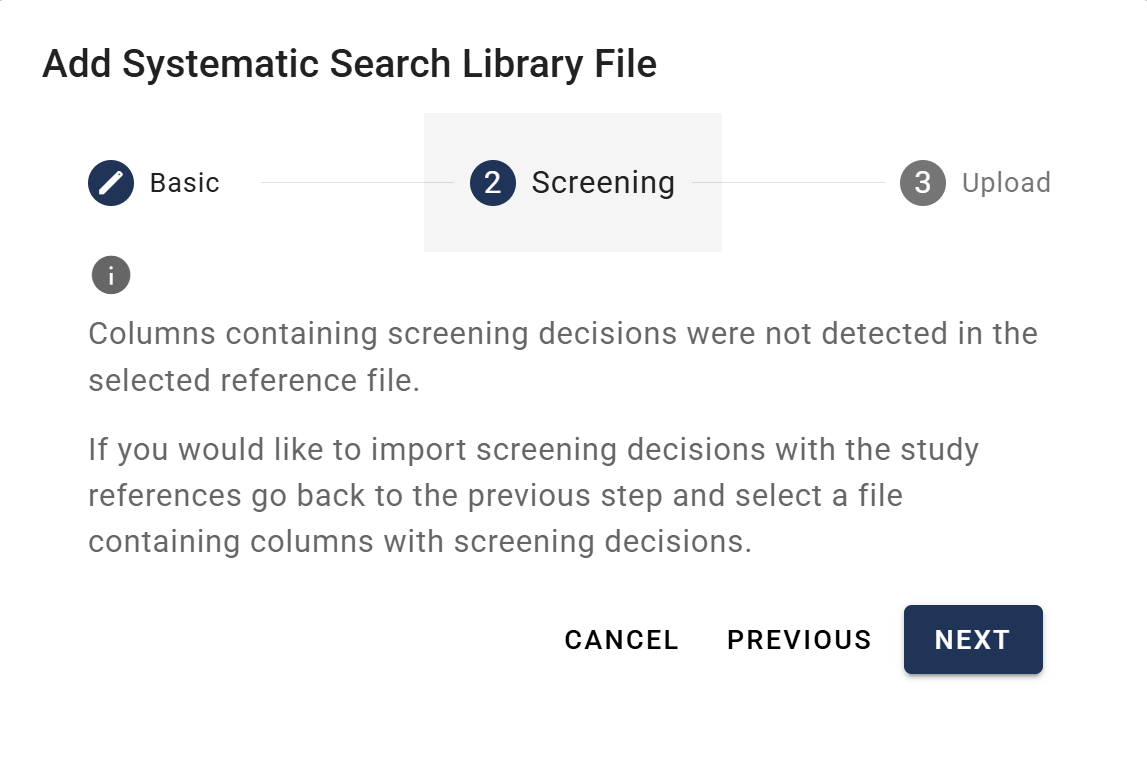
If your CSV file does not contain screening columns: SyRF will inform you that no screening columns were detected. You can simply click NEXT to continue to the final step.
-
If your CSV file contains screening columns: You must map them before proceeding.
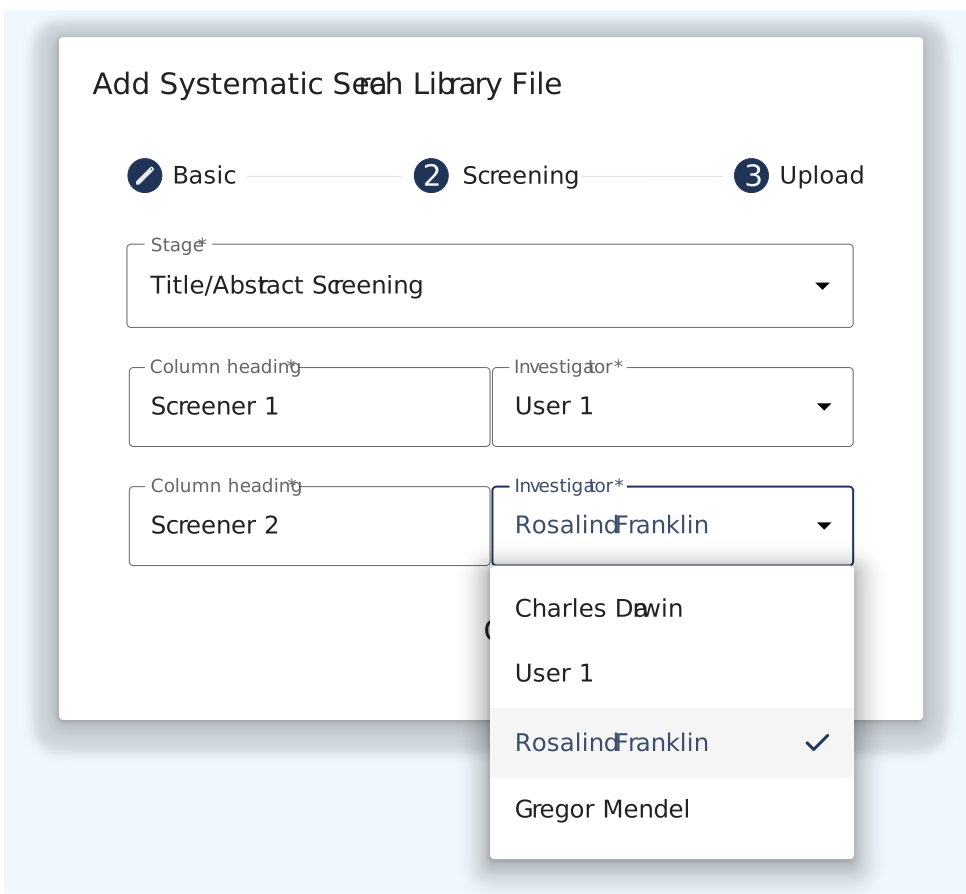
- Stage: Select the screening stage to which the decisions apply (e.g., Title/Abstract Screening, Full Text Screening).
- Map Columns to Investigators: For each screening column detected in your file, SyRF will display the Column heading. From the adjacent Investigator dropdown menu, select the Project Member who made those decisions.
- Once all columns are mapped, click NEXT.
Wizard Step 3: Upload
This is the final confirmation step.
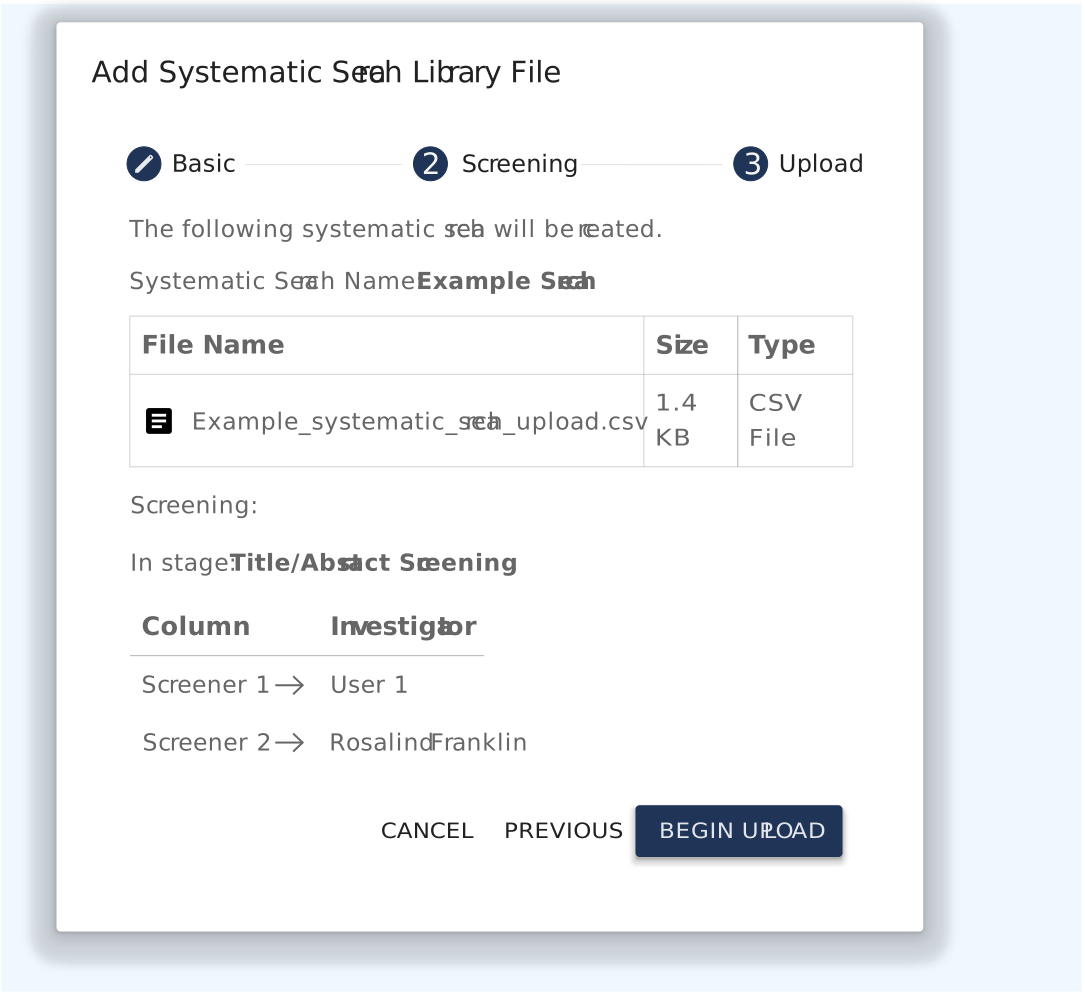
- Review Details: Carefully review the summary, which includes:
- The Systematic Search Name you provided.
- The File Name, Size, and Type of the file you are uploading.
- A summary of the Screening mappings, showing which column is being mapped to which investigator for the selected stage.
- Begin Upload: If all the information is correct, click BEGIN UPLOAD.
SyRF will now process and import your file. This may take a few moments depending on the number of references.
Upon successful upload, the new Systematic Search will appear in the list on the Systematic Searches page, and the included studies will be added to your project’s All Studies list.
If SyRF safely omits an unsupported or invalid optional RIS value, the completed search displays a warning indicator. Open its tooltip to see the bounded, sanitised warning summary, including whether additional diagnostics were truncated.
Tracking Progress on the Systematic Searches Page
Current or latest operations
Above the table, the Current or latest operations panel summarises the work SyRF is doing for this project’s searches right now — both search imports and bulk PDF uploads. While anything is running, every running operation is listed, newest first. When nothing is running, the panel shows the most recent operation so you can see how it ended. If the project has never run either, the panel is not shown at all.
Each entry shows the operation’s status, its name, a one-line detail (such as how far a save has got, or how many PDFs were copied), when it was last updated, and who started it. SyRF only ever reports what it can prove: where the server does not record a time or a person, the entry says Not available rather than guessing.
The Status column
The Status column reports the same states in the same words throughout SyRF:
| Status | What it means |
|---|---|
| Transferring… | Your file is on its way to SyRF. |
| File received. Processing… | SyRF has your file and is reading it. |
| Saving studies… | SyRF is adding the references to your project. A progress bar appears once SyRF knows the total. |
| Complete | Every reference has been imported. |
| Error | The import stopped. Select Error to read what went wrong. |
| Unknown status (n) | Your browser does not recognise a status the server reported — usually because SyRF has just been updated. Refresh the page. |
A completed search that produced import warnings keeps its Complete status and shows the warning indicator described above; warnings never turn a successful import into an error.
Once a search has finished importing, the Status column shows the progress of its bulk PDF upload instead, if you have used that feature. See Bulk upload PDFs for those states.
Next Steps
After uploading your search, you may want to:
- Add PDFs - Link full-text PDFs to your uploaded studies
- View Studies - See your uploaded studies in the project
- Manage Studies - Make bulk updates or corrections if needed